Showing posts with label Urmila Khaled. Show all posts

Thursday, 24 March 2016

Hot Potatoes


Hot Potatoes: The Excellent Tool for Quizes

Dear Colleagues,
The ubiquitous technology and online tools have made teachers' job much easier than before. The various use of online tools has led be here today to share with you an assessment tool with you. I am going to share a much user-friendly tool called Hot Potatoes. It gives you the opportunities to create quizzes and games, like cloze, matching, crossword offline and uploading it in moodle for learners.

Home screen of Hot Potato


How can I create Hot Potatoes exercises?

Hot Potatoes is a kind of tool which you need to download on your computer. In the home page of Hot Potatoes we canl find different installers for different PCs (Windows, Vista, Linux or Mac). We have to select the most appropriate one for our computers, download and install them.

This tool will then give us the following options for test items-
  1. JCloze:  

     We can create simple gap fill activity or cloze test with this tool as reading or listening task. We can embed a reading text, audio or video and blank out several key phrases in the summary (or transcript) to practice comprehension. In case of a passage text, it gives the opportunity to select every nth word as a blank space as per instruction. Here is the video on making JCloze.


  1. JQuiz

    This part is for creating quiz for multiple choice, short answers and multi-select answers as while reading or listening tasks. The following video gives the clear instruction about this.


  1. JCross

    This part helps to create the cross-word puzzles for learners. We only have to type in the words for answers, and Hot Potatoes will arrange them into grids. Then we have to add the clues for each word. Here is the video for JCross.

  1. JMatch

     JMatch supports in creating a matching (drag-drop) exercise or drop-down menu type of exercise. Vocabulary exercise, reordering texts and matching parts of sentences can be designed by this tool. Now you can have a look of the procedure from the following video.

  1. JMix

    This is a listening task and rearrange words. You can have a better idea watching the following video.


How to embed text or you tube video in the assessment

In order to insert a video or a text for listening or reading, we have to click on the icon with picture of a book, a window will pop up there. In oreder to include text we have to copy text from source and paste it in ‘Include Reading’ box, add a title. For video, we have to paste the HTML codes from the YouTube video on the Reading text space. 


Application in Classroom and Limitations
Now, how can we use these exercises in our classrooms? We can pre design quizzes and after we finish teaching content we can check learners understanding very soon with these online quizzes. We can give a listening activity or a reading activity for extra practices as well as homework for flipped classroom. Moreover, the feedback is very prompt, as such students also can have quick feedback.

One of the shortcomings of this tool is that the result is not archived in the moodle. So, it is supporting learners by giving formative feedback, teacher cannot have any idea about their progress.  Moreover, so far you have understood that we need to have a website to upload this kind of tasks. In Bangladesh, most of the institutions do not have their websites, but as you know, government has circulated that gradually all institutions will have to create their own websites. And in those websites you have to create moodle in order to upload curriculum, content, reading materials, quizzes etc. So, hopefully, in near future we will reach to that destination, but gradual preparations should be taken for paving the way.

 I will try my best to come back to you with the other necessary tools as early as possible.

Till then, good bye.
Urmila Khaled


Wednesday, 23 March 2016

What can I do with movenote and how!

Dear friends,
Again I have an opportunity to present before you with a new tool  called Movenote. Movenote is a free tool by  which we can add voice to the powerpoint presentation and use it in our classroom. Let us see in the video how can we use Movenote.


Movenote helps the teacher with the preparation of the class which can be used both online and offline. Since it is a recording, you can play the video file in the classroom as many time as possible according to the learners' needs. So, it helps a teacher to clarify subject without putting much effort.

A teacher can bring varieties in the type of assigned tasks for the learners. They may be present powerpoints, or interview someone, describing a place, or record a conversation and submit as an assignment. Students motivation can easily be created with these kinds of tasks. It is also suitable for introducing flipped classroom where teacher assign some homework and the class can be conducted with the discusssion on the topic. Teacher or learners can prepare it at their own time and pace and repeat the process until perfection. However, it has got one limitation that powerpoint animations can not be shown using it.
Now, let us have a look of a video where I have put voice on a powerpoint.


While recording the video I faced a problem which you may face too. When I tried it for the first time, I saw that the word are being broken and same word is being shown in two lines. Then I thought of a solution which worked! I edited the main powerpoint file, enlarged the textboxes, uploaded the edited one and recorded again. So, if you face the same problem please do the same.
Since this a free tool it is also applicable to the context of Bangladesh. So, have fun in using this kind of tool!

Saturday, 19 March 2016

Blended Learning & Teaching

Dear all,

 Here is a small effort of a video of a lesson based on blended learning and teaching. Please view it and comment in the comment box.


Hope this video will give you some idea about using these online tools.

Sunday, 28 February 2016

How to create and use voki


 Creating a Voki


Hi all, let us talk about voki to day. Voki is a useful tool in language teaching and learning. It is built with an imaginary character called Avatar. By creating an Avatar through Voki, we can make students learning enjoyable. Let us see how to make voki in the following video.

How to create a voki


How to publish a voki in a blog

After you finish saving the voki, you can publish it by clicking on the "publish your Voki' button under the voki screen. Copy the code from the box appeared, open the blog screen, position the cursor where you want to insert the voki, go to HTML option beside Compose and paste the code there. Go to preview option and check the preview. The following voki has been inserted in the same way.


How to use voki in teaching

Voki helps in technology enhanced learning. It promotes creativity in teaching and learning. It helps in assessment, giving feedback, engages students in varieties of presentations, stimulates learning by creating imaginary characters, creating dialogues etc.
The limitations that voki has is it can not create more than one character for creating a dialogue. It can not create the whole activity, rather form a part of  the activity.


 Applicatio of Voki in teaching

Thursday, 11 February 2016

Stormboard


Hello, colleagues,
Hope you are doing fine.
Today, I am going to talk introduce a very useful online collaboration tool to you and share about some instructions to use it.
We may use different online collaboration tools, some of which can be found in the following links
·         https://stormboard.com
·         http://www.tricider.com/home
·         https://vialogues.com/
·         https://voicethread.com/
·         https://padlet.com/
·         https://www.zoho.com/docs/writer.html

My personal opinion for using the tool
We practiced different online collaboration tools today. We did it through an exploring activity and believe me it was amazing! We explored how these tools can be used to develop the writing skill of students. Two or more students can contribute to writing a complete piece of text at the same time. So, this can be a new addition to our knowledge and skill learning how to use these tools. That is why today I would like to share such an online collaborative tool which is called "Stormboard."
 
Would you like to see what kind of tool is this?


Go to the website:
https://stormboard.com


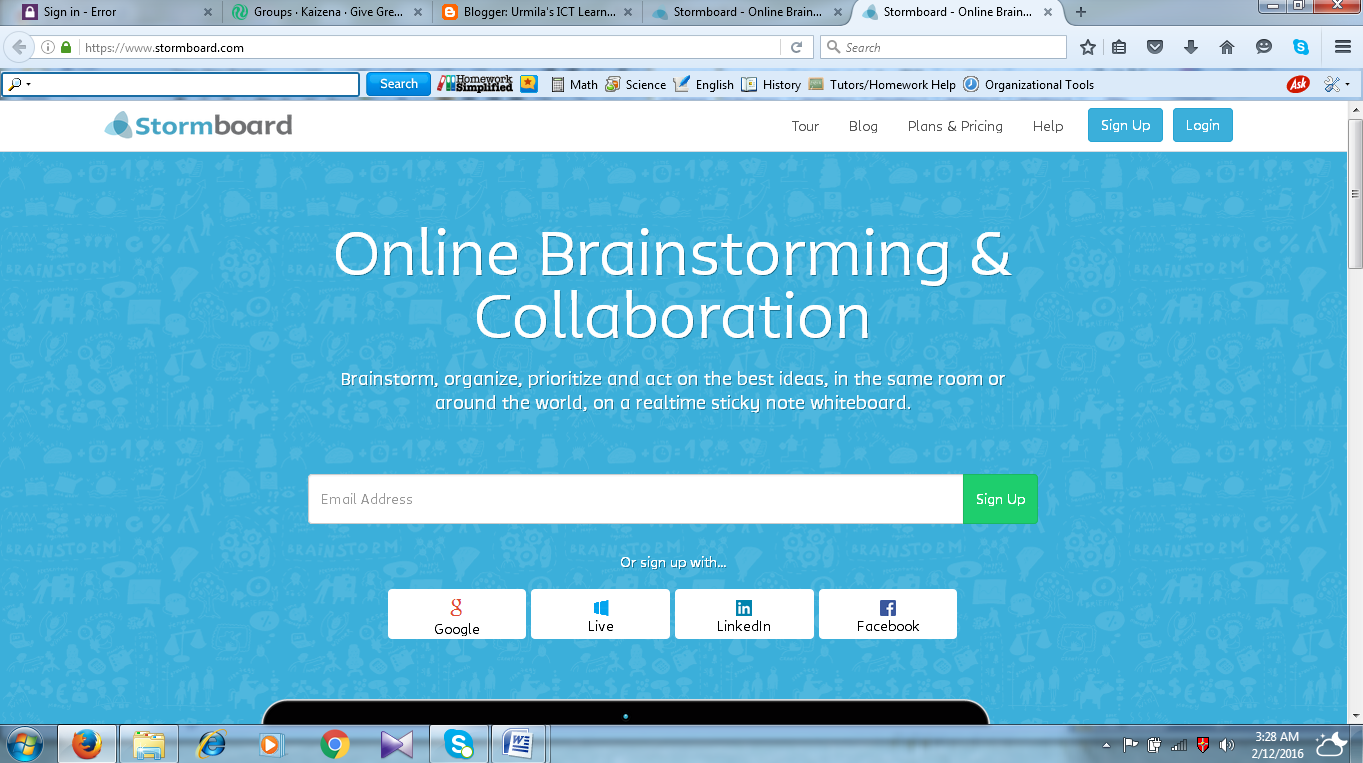
Stormboard is a coordinated collaboration tool involves students in brainstorming on a topic and sharing ideas. By creating an account, we can create a collaboration platform and invite your colleagues or students  to participate in or join a stormboard created by someone else.


You have to enter your email address when you reach this skin and sign up. It is a free tool.

When you reach the above screen, you can either create a stormboard or join a stormboard already created. If you click on ‘create a stormboard’, you will be asked to give a name for your storm.


When creating a new stormboard, select a template from different types of it like just blank one, calendar, problem solving one, etc. In order to do that, you have to go to the template menu at the bottom of the page.


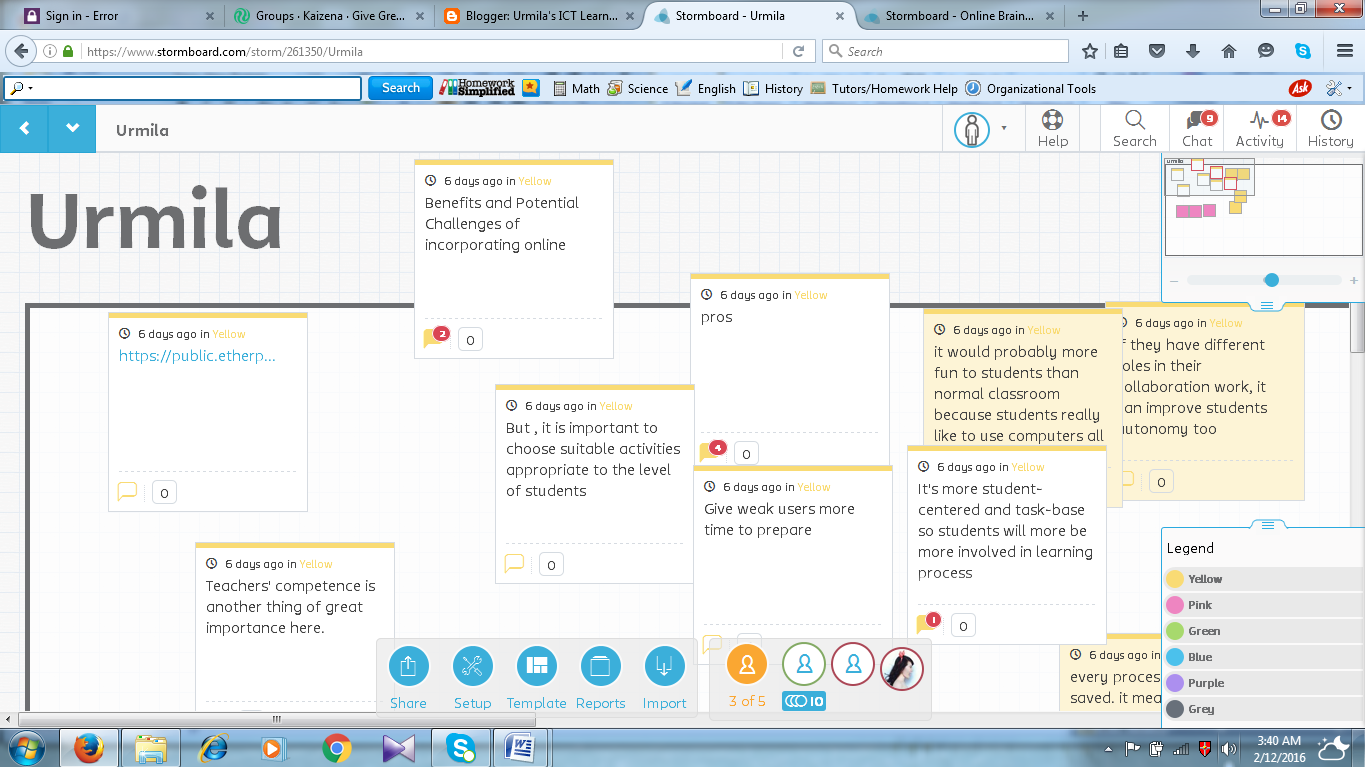
The sticky note type is most appropriate for our project characteristics. We can text, draw, vote, make comments on it and even upload files, images and videos in on sticky note. Hopefully this will be very enjoyable to the students.


On the top right hand corner of the screen you will see ‘chat’. If you click ‘chat’, you will have a space for comment. You can communicate with your partners with the help of this comment box.

You have to double click on the screen, if you want start a new idea. You have to type and press enter to share it with others. To start a new paragraph, you have to press ‘shift+enter’. There is scope to vote to others opinion on this sticky note pad. 


After you finish the writing, you can share it wherever you want by clicking share at the bottom of the page.

EFL or ESL has a strong theoretical background of using social interaction for co-constructing the knowledge. Vygotsky ZPD can be achieved by peer support. L2 learner may co-construct their knowledge and skills of writing with the help of others. Teachers and peers can scaffold for the improvement of writing. This is a great platform for exchanging ideas and feedback.
Online collaboration tools can go a long way to teach the language skills. Hope you will enjoy these tools.


With regards
Urmila